
A digital menu for your Google Business Profile
Make your restaurant menu once, then add its link to your Google listing. People who find you on Google Search or Google Maps can look through your dishes before they visit.
Get Your Menu on Google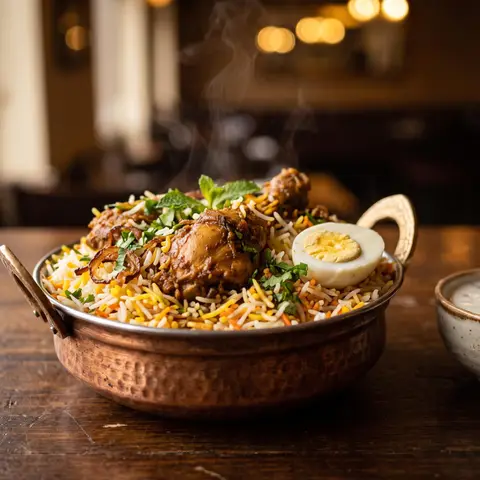
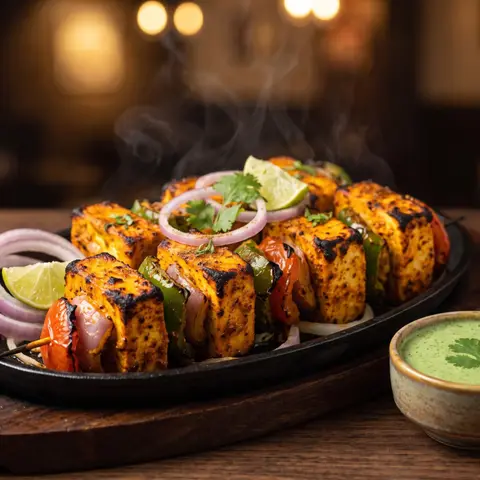
Spice Garden
North Indian restaurant · Bengaluru
- Directions
- Call
- Website
- Menu
Menu:app.dinebo.com/t/XfJ59XcC…
Spice Garden
North Indian · Bengaluru
Main course
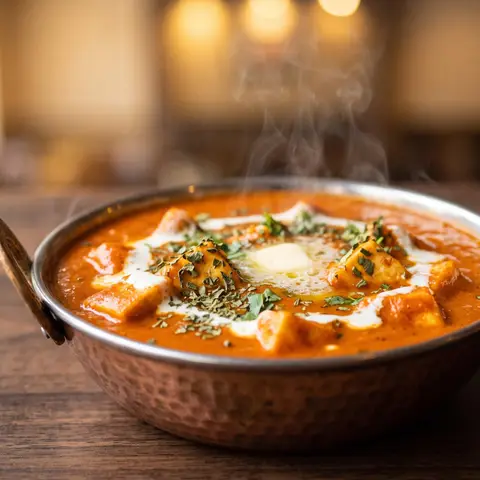
Paneer Butter Masala
Soft paneer in a rich tomato gravy
₹250
Chicken Biryani
Slow-cooked with whole spices
₹320
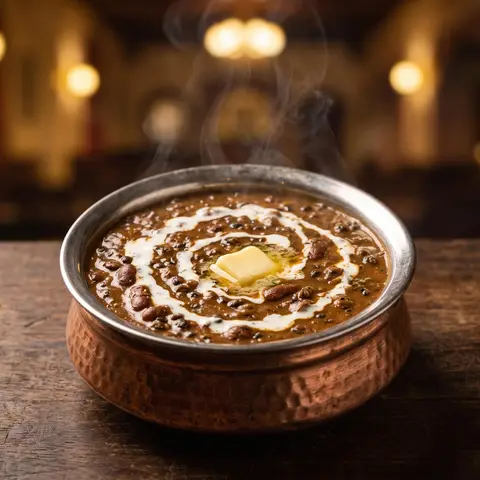
Dal Makhani
Black lentils, cream and butter
₹220
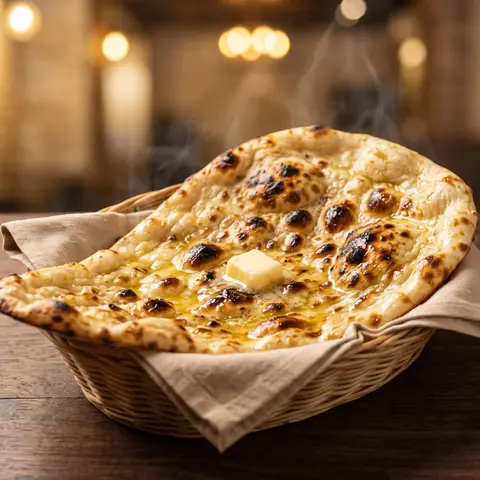
Butter Naan
Fresh from the tandoor
₹70
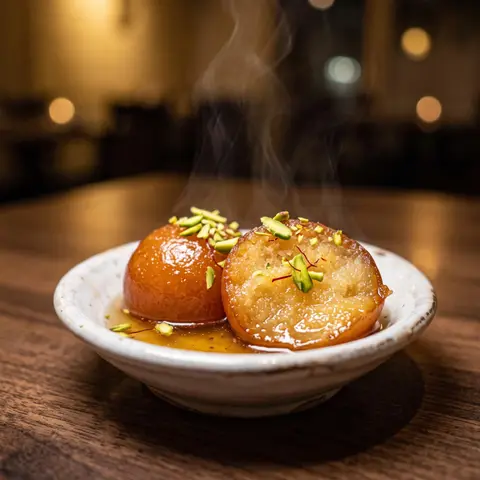
Gulab Jamun
Warm, in rose syrup
₹90
What is Google’s Menu link?
Google Business Profile has a Menu link field for food and drink businesses. It holds the web address of your menu. Dinebo gives you that address.
| Menu link, with Dinebo | Google’s menu editor | |
|---|---|---|
| What it is | A link to your own online menu | Dishes typed into your Google profile |
| Where you edit | In Dinebo | In Google Business Profile |
| Change a price | Once. The link opens the new price | Separately, in Google |
| Also works on | Instagram, WhatsApp, your website and QR codes | Google only |
How to add your menu to Google Maps and Search
You need a Dinebo menu that’s live, and access to your restaurant’s Google Business Profile.
These steps follow Google’s help page, and Google’s screens can change. Read Google’s own instructions
- 1
Make your menu live on Dinebo
Photograph your menu or upload a PDF, check the dishes, and go live. It’s free.
- 2
Copy your menu link
Open Your QR code in the Dinebo app or web portal and copy the link.
- 3
Open your Google Business Profile
Sign in, go to your Business Profile and choose Edit profile.
- 4
Find the Menu link field
Choose Business information, then Contact, then Menu link.
- 5
Paste the link and save
Google can take some time to show changes, and decides how it appears.
Why have an online menu on your listing?
- Customers can see dishes and prices before they visit.
- No PDF to download. It opens in any phone’s browser.
- Photos show what each dish looks like.
- Change a price and the same link shows it straight away.
- The same QR code menu works on your tables.
- It’s free to make and keep.
- What Dinebo gives you
- A public link to your digital menu, ready to paste.
- What you do
- Add the link in your own Google Business Profile. It takes about a minute.
- What Dinebo doesn’t do
- It doesn’t send your dishes to Google or fill in Google’s menu editor. That’s separate.
- What Google decides
- Whether and where it shows your link. No one can promise a placement or a ranking.
Your link works outside Google too. See everywhere you can share it
Questions about Google
Does Dinebo publish my menu to Google for me?
No. Dinebo gives you the link, and you add it to your own Google Business Profile. Dinebo doesn’t send your dishes to Google.
Will this help my Google ranking?
We can’t promise that. Google decides how listings rank and what they show.
Is this the same as Google’s menu editor?
No. The menu editor holds dishes typed into Google. The Menu link points to your menu on Dinebo. Google may also show menu details from other sources, and its help page explains how to manage them.
I can’t see the Menu link field. What now?
Google offers it to food and drink businesses, so check that your business category is a restaurant or similar. Google’s help page has the latest steps.
If I change a price, do I need to update Google?
Not the link. It stays the same and opens your latest menu. Anything you typed into Google’s menu editor is separate and you’d change that in Google.
Can I add the link from my phone?
Yes. Copy the link in the Dinebo app, then edit your Business Profile from Google Search or Google Maps on your phone.
Make your menu, then add it to Google.
Free forever. No card, no app for your customers.
Create Your Free Menu