
How to Add Your Restaurant Menu to Google Maps
By Dinebo team · Published · 2 min read
The short answer
You don’t add a menu to Maps directly. You add it to your Business Profile, which is what people see on both Google Maps and Google Search. You can do it from the Google Maps app on your phone.
Maps and Search share one profile
Your restaurant’s listing on Google Maps comes from your Business Profile. The same profile appears on Google Search, so you only need to add your menu once.
If you haven’t claimed your restaurant yet, start there. Google asks you to add or claim your business and verify it. You can find this in its restaurant setup guide.
Add it from your phone
- Step 1: Open the Google Maps app, signed in with the account linked to your profile.
- Step 2: Tap Business at the bottom right.
- Step 3: Tap Edit profile.
- Step 4: Look for Menu link in your contact details, then paste your menu’s address.
- Step 5: Tap Save.
The app’s screens can differ between phones and over time. If you can’t find the field, the computer steps below follow Google’s own menu instructions.
Add it from a computer
- Step 1: Go to business.google.com and choose your restaurant.
- Step 2: Select Edit profile, then Business information, then Contact, then Menu link.
- Step 3: Enter your menu’s address and select Save.
For the other options, Google’s menu editor and menu photos, see how to add a menu to Google Business Profile.
Get a link that works well on a phone
Most people will open your menu on a phone, often while standing outside or deciding where to eat. A good menu page:
- Opens straight away, with no file to download and no app to install.
- Is easy to read without zooming.
- Shows prices, and photos if you have them.
- Stays at the same address when your menu changes.
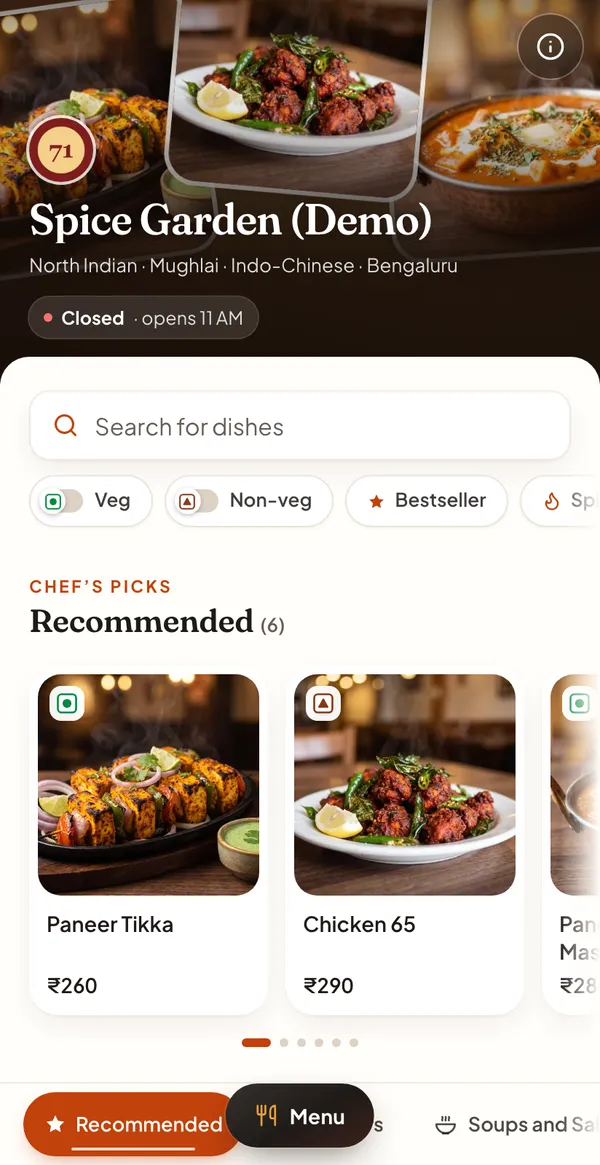
Dinebo gives you this kind of page. Find the link under Your QR code and tap Copy link.
Check that it worked
- Step 1: Wait a while. Google reviews changes before they go live and gives no fixed time for this one.
- Step 2: Search for your restaurant on Google Maps, using a phone.
- Step 3: Tap the menu option on your listing and see which menu opens.
- Step 4: If it’s not your new one, follow the next section.
Google decides how and where your link appears, and the layout varies, so yours may not look exactly like another restaurant’s.
Fix an old or wrong menu
Old menus are common on Maps, because menu details can come from your website or from customer photos.
- More than one menu found: select Edit menu, open the Full menu tab, choose yours and select Save.
- Details copied from your website: edit them in the menu editor, or follow the opt-out in Google’s menu transcription section.
- An old customer photo: flag it using the link on Google’s help page, then upload an accurate one.
See if people are using it
Google’s restaurant guide says your profile’s performance page can show searches, menu clicks and bookings. Dinebo’s Home screen also shows how many times your menu was opened each day, including on the free plan.
Looking at both over a few weeks tells you more than any single day. To bring more people to your profile, read how to use Google Business Profile to promote a restaurant.
Official pages we checked
- Google: Edit your Business Profile
- Google: About the menu editor
- Google: Get started with a Business Profile for your restaurant
These apps change their screens often. If a step looks different, their own page has the latest. Last checked 1 November 2026.