
How to Add a Menu to Google Business Profile
By Dinebo team · Published · 3 min read
The short answer
Open your Business Profile and choose Edit profile, Business information, Contact, then Menu link. Paste the address of your online menu and save. You can also type dishes into Google’s menu editor or upload photos of your menu.
The three ways to add a menu
Google gives food and drink businesses more than one way to show a menu. You can use them together, but it helps to know what each one is for.
| What it is | Good for | Watch out for | |
|---|---|---|---|
| Menu link | A link to a menu on the web | One menu you also use elsewhere | The page must open well on a phone |
| Menu editor | Sections, dishes and prices typed into Google | Showing dishes right on your profile | A second copy to keep up to date |
| Photos of menu | Pictures or a PDF of your menu | A quick start | Goes out of date when prices change |
Before you start
- You need to sign in with the Google Account linked to your Business Profile.
- Your business should be listed as a food and drink business, because that’s who the menu feature is for.
- For a menu link, you need a menu that’s already online. If you don’t have one yet, make one first.
Add a menu link
- Step 1: Go to your Business Profile at business.google.com.
- Step 2: Select Edit profile, then Business information, then Contact.
- Step 3: Find Menu link and enter the address of your menu.
- Step 4: Select Save.
Google reviews changes before they go live, and doesn’t promise how quickly they’ll appear. So don’t worry if the link isn’t there straight away.
Open the link on your own phone before you paste it. If it’s slow, or asks people to download a file, your customers will have the same trouble.
Where to get the link in Dinebo
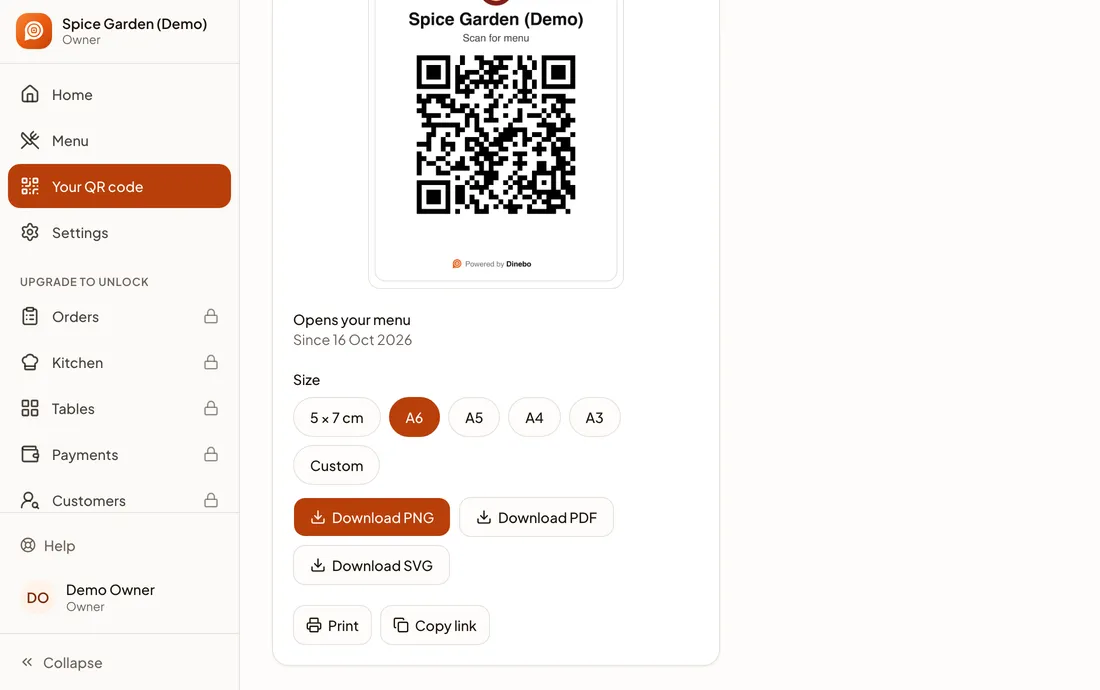
With Dinebo, your menu has one address that stays the same when you change a dish or a price. Open Your QR code in the app or web portal and tap Copy link.
Use Google’s menu editor
The editor keeps your dishes inside your Google profile. It’s a separate copy, so Dinebo doesn’t fill it in or update it.
- Step 1: Go to your Business Profile and select Edit menu.
- Step 2: To add a dish, select Add menu item, enter the details and select Save.
- Step 3: To add a section, such as Starters, select Add menu section, enter its name and at least one dish, and select Save.
Google says these changes can take 24 to 48 hours to show on Maps and Search.
Upload photos or a PDF of your menu
- Step 1: Go to your Business Profile and select Edit menu.
- Step 2: At the top, select Photos of menu.
- Step 3: Select Select photos or a PDF, or drag your files in.
Google also has an experimental option that builds a menu from a photo. Select Generate a menu, check the result, then select Publish and edit. It asks you to accept Google’s generative AI terms, and your whole menu must fit in one clear photo.
Customers can upload menu photos too, and those can go out of date. Google’s help page has a way to flag one that’s wrong.
If Google shows the wrong menu
Google can find menus in several places, and it may copy menu details from your website. When it finds more than one, you can choose:
- Step 1: Go to your Business Profile and select Edit menu.
- Step 2: Open the Full menu tab and pick the one you want.
- Step 3: Select Save.
Which should you choose?
If you’ll share your menu on WhatsApp, Instagram and QR codes as well, start with the menu link. You change your menu once, and everyone who opens the link sees the latest version.
If you also want dishes on your profile, add them in the editor and accept that you’ll update two places when prices change.
A menu on your profile doesn’t guarantee a higher place in search. Google explains how local results work in its local ranking guide.
Official pages we checked
- Google: About the menu editor
- Google: Edit your Business Profile
- Google: Get started with a Business Profile for your restaurant
These apps change their screens often. If a step looks different, their own page has the latest. Last checked 1 November 2026.