
How to Create a QR Code Menu for a Restaurant
By Dinebo team · Published · 3 min read
The short answer
Put your menu on a web page, make a QR code that opens that page, print it and test it on a few phones. Make sure the code points to an address you can keep updating, so you never have to reprint it when a price changes.
What a QR code menu really is
A QR code is just a printed web address. The guest points their phone camera at it and your menu opens in the browser, with nothing to install.
So the code is the easy part. The menu it opens is what your guests will judge, so start there.
Step 1: Put your menu online
You have a few choices:
- A PDF: quick, but small and awkward on a phone, and every change means replacing the file.
- A page on your website: works if you can update it easily yourself.
- A digital menu tool: built for phones, with dishes you can edit one by one. Dinebo is one, and its menu is free forever.
If you already have a printed menu or a PDF, you don’t need to type it all out. See how to create a digital menu from a PDF.
Step 2: Create the code
Any QR generator can turn a web address into a code. The thing to check is whether the address will stay the same. If the code opens a file that gets replaced at a new address, your printed codes stop working.
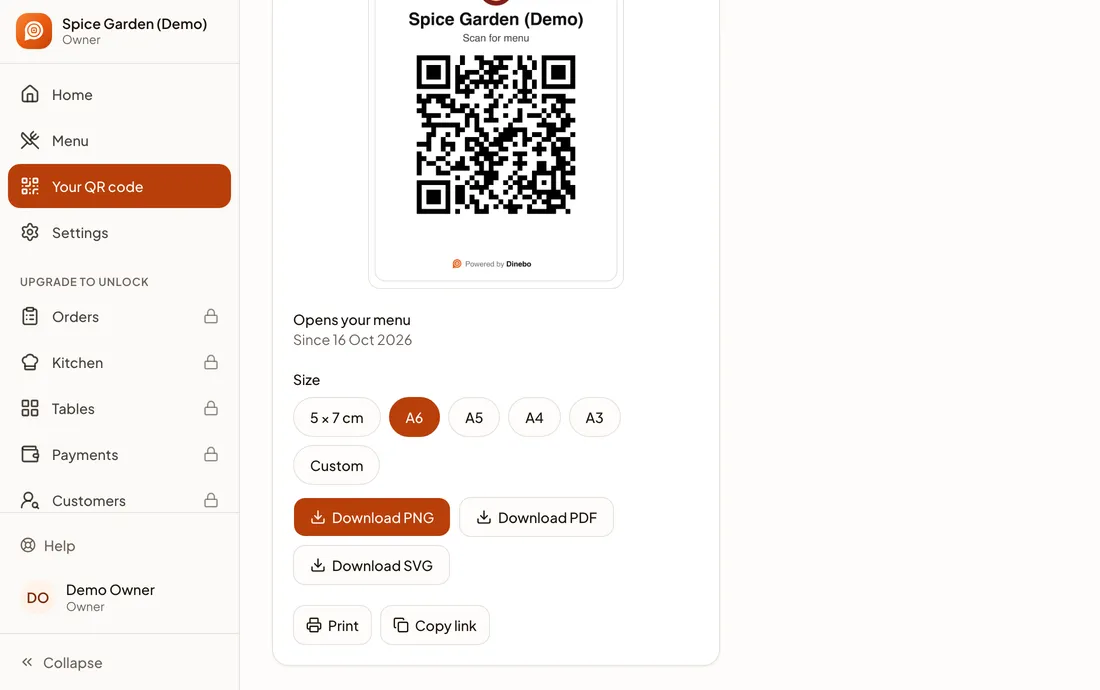
In Dinebo the code is made for you when your menu goes live. Open Your QR code to find it, with your restaurant’s name and logo on a printable card.
Step 3: Print it at the right size
The right size depends on how far away people will be. Someone at a table holds their phone close, while someone reading a poster from the door doesn’t.
| Card size | A good place for it |
|---|---|
| 5 × 7 cm | Stickers, takeaway boxes, bills |
| A6 | Table tents and counter cards |
| A5 | Counters and small stands |
| A4 or A3 | Walls, windows and entrance posters |
Dinebo also takes a custom width, from 3 cm upwards, and downloads as PNG, PDF or SVG. Below 3 cm, phones struggle to read a code.
- Print dark on a light background.
- Leave clear space around the code.
- Avoid shiny lamination under bright lights, which can stop cameras reading it.
- Add a few words, such as “Scan for menu”, so people know what it’s for.
Step 4: Test before you print many
- Step 1: Print one copy at the real size.
- Step 2: Put it where it will really go, in your restaurant’s real light.
- Step 3: Scan it with at least one Android phone and one iPhone, with mobile data rather than your Wi-Fi.
- Step 4: Check that the right menu opens and reads easily.
- Step 5: Then print the rest.
One code or one per table?
For a menu people only read, one code for the whole restaurant is enough. You can print it as many times as you like and put it on every table.
You need a code for each table when guests order from their phones, so the kitchen knows where food is going. In Dinebo that comes with the Orders plan, at $2 a month.
Mistakes to avoid
- Printing before testing, then finding the code is too small to scan.
- Pointing the code at a file you’ll later replace.
- Getting rid of every paper menu. Keep a few for guests with no phone or a flat battery.
- Leaving codes where someone could stick a different one on top. Check them now and then.
Your menu link works beyond your tables too. Share it on WhatsApp, Instagram and Google.