
How to Create a Digital Restaurant Menu from a PDF
By Dinebo team · Published · 2 min read
The short answer
Upload your PDF to a menu tool that can read it, check every dish and price it found, then go live. In Dinebo it usually takes a minute or two to read the menu, and nothing goes public until you’ve checked it.
Why not just share the PDF?
You can, and it’s better than nothing. But a PDF was made for paper, so it has problems on a phone:
- Guests pinch and zoom to read it.
- Some phones download the file instead of opening it.
- Every price change means making a new file.
- You can’t mark one dish as sold out.
- Old copies stay in people’s chats and downloads.
A digital menu keeps your dishes as separate items, so you can change one without touching the rest. For a full comparison, see digital menu vs traditional paper menu.
Prepare your file
A few minutes here saves time checking later.
- Use the most recent version, with current prices.
- Fix or remove anything you know is out of date.
- If it’s a scan, make sure it’s straight and sharp.
- Check that prices can be read and aren’t lost in a dark background or decoration.
No PDF? A photo works too. Take one per page, with the menu flat and in good light.
Turn it into a menu in Dinebo
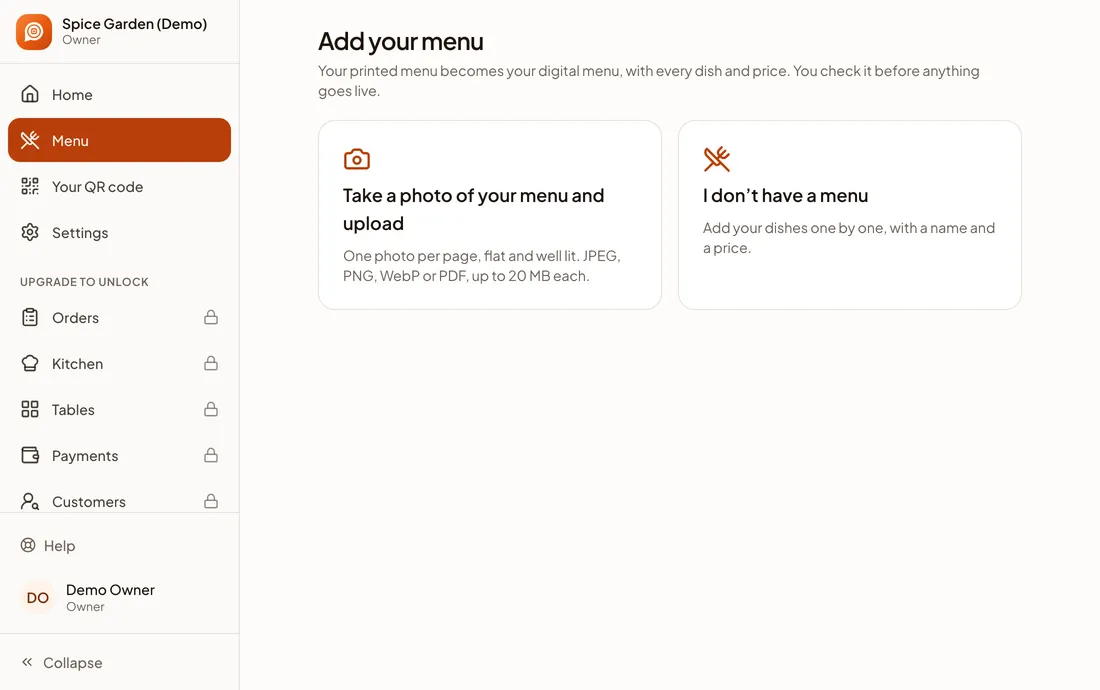
- Step 1: Sign up and choose Take a photo of your menu and upload.
- Step 2: Add your PDF or photos. JPEG, PNG, WebP and PDF all work, up to 20 MB each, and it reads up to 20 pages.
- Step 3: Press Add my menu. It usually takes a minute or two, and you can leave the page while it reads.
- Step 4: Check the dishes it found, then add them to your menu.
What to check
Software reads menus well, but not perfectly, and a wrong price is your problem rather than its. Dinebo marks the dishes it isn’t sure about:
| What you’ll see | What to do |
|---|---|
| Add the price | It found the dish but no price. Type it in. |
| Check the price | Compare it with your menu. |
| Check the name | Correct the spelling. |
| Check veg or non-veg | This was a guess. Set it yourself. |
| May be a duplicate | Remove it if it’s the same dish twice. |
Then read the whole list once, even the dishes with no message. Pay special attention to half and full prices and to extras. Never rely on a guess for allergens: add those yourself.
Finish and go live
- Step 1: Add your restaurant’s name and city.
- Step 2: Choose whether to show dish photos and automatic descriptions, and edit any you’d like to change.
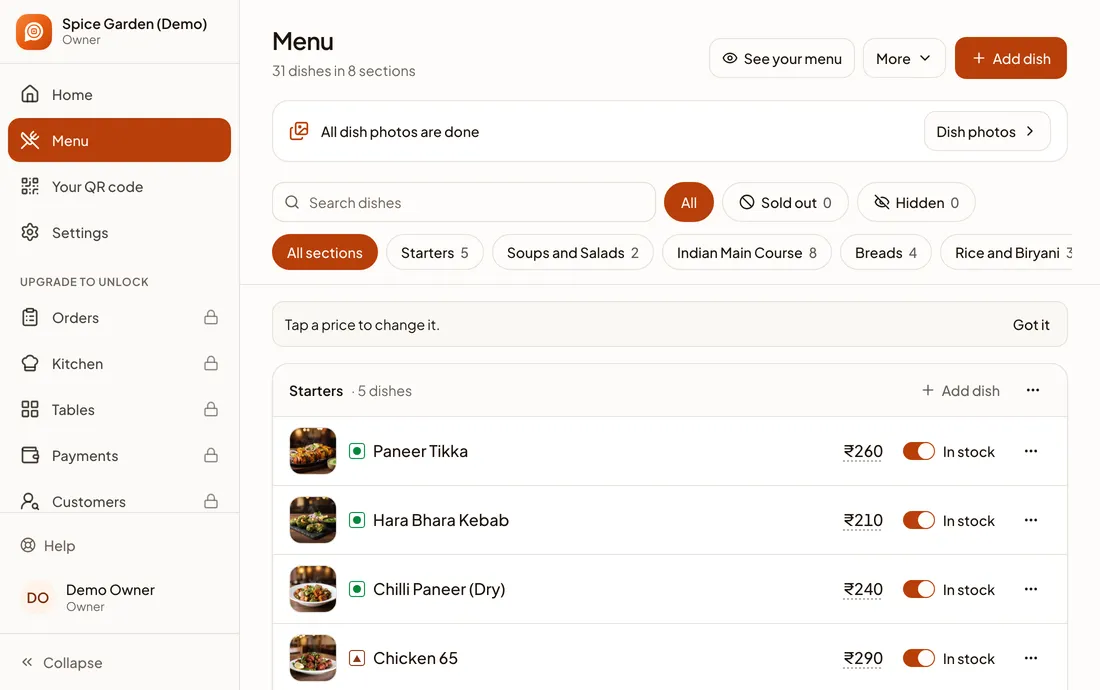
- Step 3: Press See your menu to view it as a guest would.
- Step 4: Go live. You’ll get your link and QR code.
After that
You can stop updating the PDF. Change prices in Dinebo, and everyone who opens your link sees the latest menu.
- Print your QR code for your tables.
- Add the link to Google.
- Share it on WhatsApp instead of sending the PDF again.
Google’s profile also accepts a PDF under Photos of menu. That’s handy, but it’s a copy that goes out of date, so a link to your live menu is easier to maintain.